Home / Xpress Genie / What Genie can fix

What Xpress Genie can do for your team

Xpress Genie is the AI helper in the Xpress ASSIST app, on every PC we look after. This page lists everything it can fix, what fixes itself, and what Genie will never do. Share it with your team.

Try it free for 7 days
How it works

Ask in your own words. Say yes. Done.

Click Ask Xpress Genie on the Xpress ASSIST app, or use it while you wait for a support technician. Type the problem in your own words, or press the picture button to show Genie the error. Genie checks the PC, explains the cause in plain English, and offers one fix. Nothing changes until you press "Yes, do it".

You tell Genie

"Printer stuck", "Teams can't hear me", or show it the error.

Genie checks the PC

Disk, printers, network, antivirus, updates and more.

You say yes

It explains the fix in one line before it does anything.

Fixed and logged

It checks it worked. If not, a support technician takes over.

The 30 fixes

Everything Genie can fix

Every fix is written and tested by Xpress. Genie can only choose from this list. It can't make up its own commands.

Your account 18 fixes for your own Windows account. They run straight after you say yes.Whole PC 12 fixes that need admin rights. The Xpress ASSIST service runs them safely for you after you say yes, so you never need an admin password. PCs only.

Printing and scanning

Stuck printers are the most common call we get. Genie clears them in seconds.

Clear my stuck print jobsRemoves jobs that are blocking the printer, so new prints come out.Your account  You might say: "printer not printing", "print stuck"
Set my default printerMakes the printer you use most the one Windows and Office print to.Your account  You might say: "prints going to the wrong printer"
Restart the printing serviceRestarts the Windows printing service when every printer looks stuck.Whole PC  You might say: "no printer works", "printer offline"
Restart the scanner serviceRestarts the Windows scanning service so the scanner shows up again.Whole PC  You might say: "scanner not found"

Outlook and Microsoft 365

Outlook, OneDrive and Office sign-in problems, sorted without losing any mail or files.

Close and reopen OutlookCloses Outlook properly, even when it hangs, and opens it again.Your account  You might say: "Outlook not responding"
Open Outlook without add-insStarts Outlook in safe mode when an add-in stops it opening. Mail and settings don't change.Your account  You might say: "Outlook won't open", "cannot start Microsoft Outlook"
Clear the new Outlook cacheClears the saved copy the new Outlook keeps, so it loads fresh from the server.Your account  You might say: "new Outlook blank", "mail not loading"
Reset my Microsoft 365 sign-inClears stuck Office sign-in details, so Outlook, Teams and OneDrive ask once and work again. Your password doesn't change.Your account  You might say: "keeps asking for password"
Clear the Office upload cacheClears files stuck waiting to upload from Word, Excel or PowerPoint.Your account  You might say: "upload pending", "can't save to SharePoint"
Restart OneDriveRestarts OneDrive when files stop syncing.Your account  You might say: "OneDrive not syncing"
Repair Microsoft OfficeRuns Office's own quick repair when Word, Excel or Outlook keep crashing.Whole PC  You might say: "Excel keeps crashing"

Teams and calls

Ready for the next meeting: headset, microphone, camera and speakers.

Reset TeamsClears Teams' saved data when it is slow, blank or won't sign in. Chats are safe on the server.Your account  You might say: "Teams not loading", "Teams stuck"
Fix my microphone and camera for callsMakes your headset the microphone and speaker for Windows and Teams, and checks the camera is allowed.Your account  You might say: "nobody can hear me", "camera not working in Teams"
Restart the sound serviceRestarts Windows sound when there is no sound at all.Whole PC  You might say: "no sound", "speakers not working"

Internet, network and shared drives

When the internet works for everyone else but not for you.

Refresh internet settingsClears saved website addresses, so sites that won't open load again.Your account  You might say: "website not opening"
Clear the browser cacheClears saved pages in Edge or Chrome when a site looks broken. Saved passwords stay.Your account  You might say: "page not loading properly"
Reconnect my network drivesReconnects shared drive letters, like S: or P:, that show a red cross.Your account  You might say: "S: drive missing", "can't open shared folder"
Repair network settingsResets the PC's network settings when Wi-Fi or the network cable won't connect.Whole PC  You might say: "no internet", "wifi keeps dropping"

Slow or stuck PC

Space freed and frozen programs closed. Your documents are never touched.

Clear temporary filesRemoves temporary files that fill up the C: drive and slow the PC.Your account  You might say: "PC very slow", "disk full"
Close programs that are not respondingCloses programs that have frozen, after asking you.Your account  You might say: "screen frozen", "program not responding"
Restart the taskbar and foldersRestarts Windows Explorer when the taskbar, Start menu or folders stop responding.Your account  You might say: "taskbar not working"
Empty my Recycle BinEmpties the Recycle Bin to free space, after you confirm.Your account  You might say: "need more space"
Deep clean the C: driveRemoves old Windows update files and system leftovers to free a lot of space.Whole PC  You might say: "C: drive red", "low disk space"
Restart this computerRestarts the PC at a time you pick, after you save your work. PCs only.Your account  You might say: "restart pending", "PC acting strange"

Windows, security and devices

Bigger fixes that normally need IT admin rights. Xpress ASSIST runs them safely for you.

Reset Windows UpdateResets Windows Update when updates keep failing or are stuck for weeks.Whole PC  You might say: "updates failing"
Repair Windows system filesRuns Windows' own repair tools to fix damaged system files.Whole PC  You might say: "Windows error", "blue screen"
Correct the clockSets the right time. A wrong clock can stop sign-in and websites working.Whole PC  You might say: "time is wrong"
Turn on and update antivirusTurns Microsoft Defender back on and updates it.Whole PC  You might say: "antivirus is off"
Re-apply company settingsRe-applies your company's Windows settings and drive maps.Whole PC  You might say: "settings missing", "mapped drive gone"
Restart a device that stopped workingRestarts a device such as a USB headset, webcam or dock after a driver update.Whole PC  You might say: "device not recognised"
Fixes itself

Some problems fix themselves

Xpress ASSIST checks every PC around the clock. When it finds one of these problems, it fixes it on its own, checks the fix worked, and shows it in your control panel as Fixed automatically. The user gets a short note the next time they sign in.
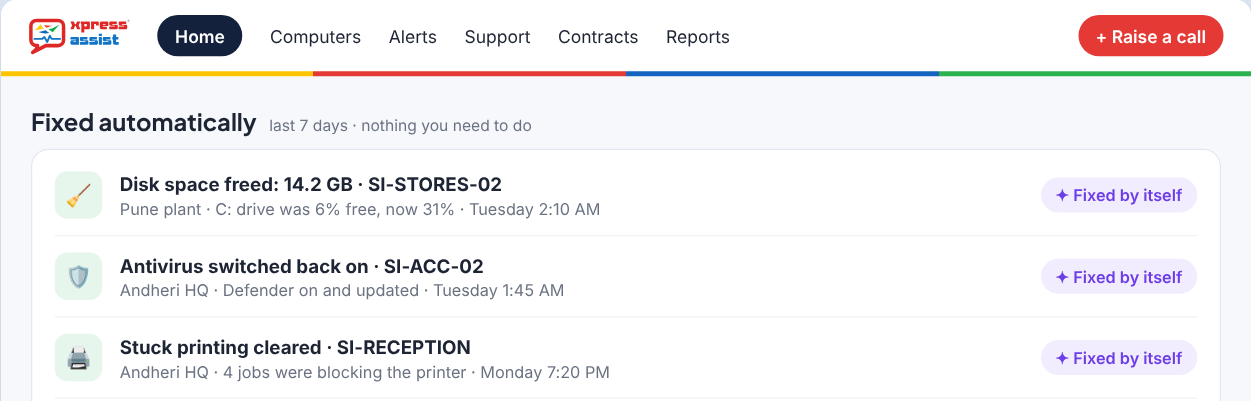
Fixed automatically, in the customer control panel
When the health check findsWhat happensWhen
Disk less than 10% freeTemporary files are clearedAt night, or within 24 hours
Antivirus (Microsoft Defender) switched offIt is switched back on and updatedAt the next check
Print jobs stuck for an hourThe print queue is clearedAt the next check
Clock wrong by 2 minutes or moreThe clock is correctedAt the next check
No Windows updates for 45 daysWindows Update is resetAt night
Restart waiting for 7 daysThe user is asked to pick a time. A PC is never restarted on its own.At the next check
OneDrive stoppedOneDrive is restarted (switched on by Xpress on request)At the next check

A fix only counts when the next check shows it worked. If it doesn't work after two tries, it stops and an Xpress support technician looks at it. Self-healing never runs on servers.
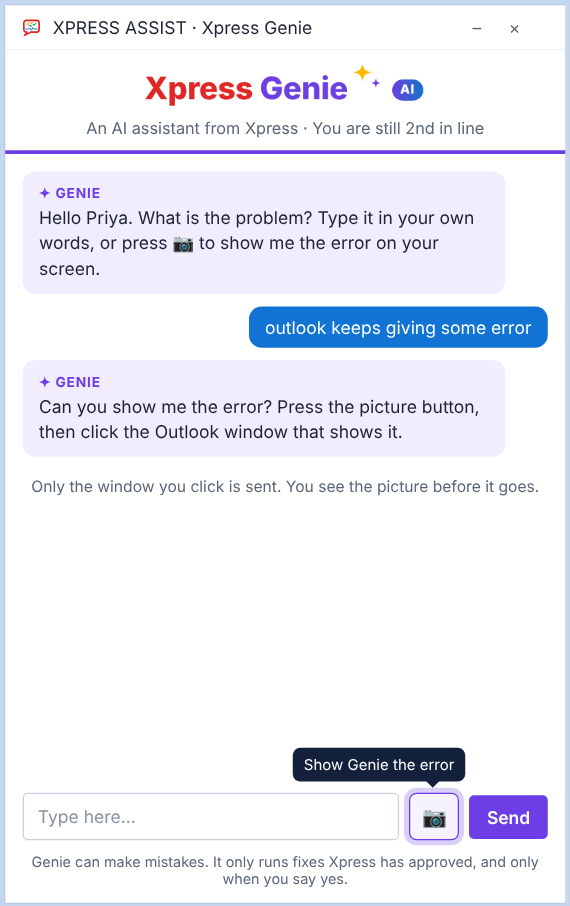
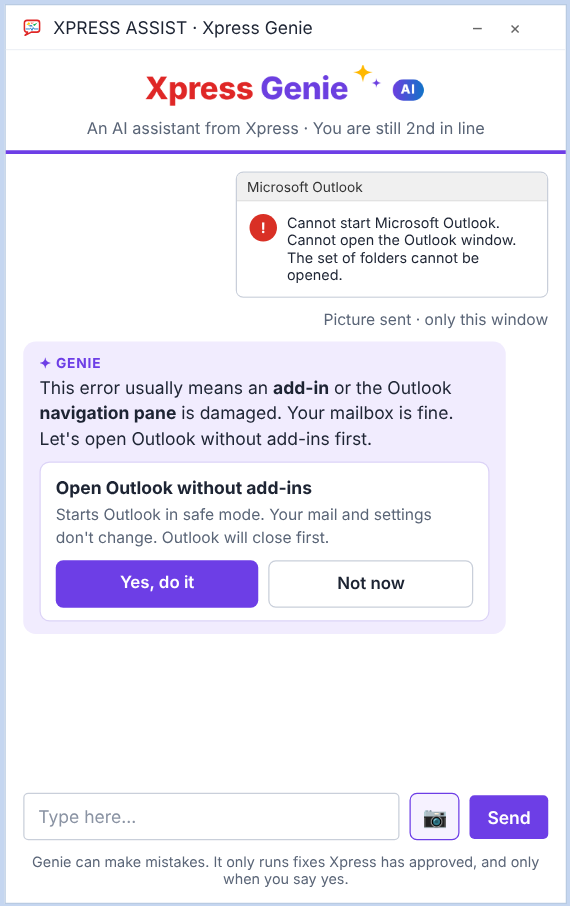
Show Genie the error

One button to show the problem

  • Press the picture button, then click the window that shows the error
  • Only that one window is captured, never the whole screen
  • You see the picture before it is sent, and can press Cancel. Passwords on screen? Just cancel.
  • Up to 5 pictures per conversation
  • The picture is kept with the support call, so a support technician sees it too
The Show Genie the error button
Genie reads an Outlook error
Out of hours and hand-over

Genie works when we're not in the office

Outside 9:30 AM to 6 PM, working days

Genie tells you when our support technicians are back, and still checks your PC and tries the safe fixes. If the problem needs a person, it saves a support call with what it found, what it tried and your call-back number. We pick it up first thing in the morning.

When Genie can't fix it

During working hours, Genie hands over to an Xpress support technician with a short summary: the problem, what it checked and what it tried. You don't have to explain it again. You can also click Connect to Xpress at any time instead of using Genie.

Can and never

What Genie does, and what it never does

Genie is an AI, and AI can make mistakes. That's why it can only use the fixes on this page, and only with your OK.

Genie can

  • Answer "how do I" questions about Windows and Microsoft 365
  • Explain what is wrong, using the PC's health data
  • Run the 30 fixes on this page, after you say yes
  • Read the one window you choose to show it
  • Hand over to a support technician with a summary
  • Log everything it does as a support call

Genie never

  • Changes anything without your "Yes, do it"
  • Makes up its own commands
  • Reads your files or e-mails
  • Deletes your documents
  • Installs software or changes passwords
  • Looks at your screen unless you press the picture button
PCs and servers

Extra care on servers

Servers run your business, so Genie is gentler there. Server work is done by Xpress support technicians.

What Genie doesPCs and notebooksServers
Answers questions and explains problems
"Your account" fixes
"Whole PC" fixesNever
Fixes itself (self-healing)Never
RestartOnly at a time the user picksNever
Included in every plan

Genie comes with every Xpress ASSIST plan

Silver, Gold, Gold+ and Platinum all include Xpress Genie, 24x7 monitoring and your control panel, at no extra cost. Every Genie fix also shows in your monthly IT report.

An Xpress support technician ready to help
A person is always thereXpress support technicians, 9:30 AM to 6 PM on working days. Call +91 22 6612 2000.

This list describes Xpress Genie in Xpress ASSIST 1.15, October 2026. Xpress adds new fixes from time to time. Xpress Computers Ltd · 205, Woodrow, Veera Desai Road, Andheri West, Mumbai 400053 · sales@xpress.co.in · getxpressassist.com